Erase Your iPhone in the Right Order Before You Sell
Erase your iPhone in the right order before you sell. Back up first, sign out of your Apple Account, then wipe. Avoid Activation Lock in Sydney.
Thinking of selling your iPhone in Sydney? The money is in the preparation, not just the listing photos. If you want to know how to erase iPhone correctly, the order you do things in matters more than you might expect. Back up first, sign out of your Apple Account and turn off Find My, then erase and remove the SIM. Do it backwards, or skip the sign-out, and you can leave the phone activation locked. That means no buyer can set it up, and your sale stalls fast.
In this guide, we will walk through the exact sequence step by step. You will see why the order matters when you sell an iPhone in Sydney, what you need before you start, how to back up, how to sign out and turn off Find My, how to erase all data, and how to handle the SIM or eSIM. We will also cover what goes wrong if you erase first, how to remove Activation Lock if you already did, and a simple pre-quote cleanliness checklist so you can confirm the phone is genuinely ready for a buyer. The order is the whole trick.
Why the order matters when you sell an iPhone in Sydney
Most sellers learn the hard way that the order is the whole trick.
The sequence that works is backup, sign out of your Apple Account, then erase. Apple publishes its own pre-sale guidance for selling, giving away or trading in an iPhone, and every step in it depends on the one before it.
Skip the sign-out and something quiet happens. Erase while the handset is still tied to your account and Activation Lock stays switched on. The next person to power it up gets a setup screen asking for an Apple Account email and password that isn't theirs.
Activation Lock exists to deter theft. It cannot tell the difference between a stolen iPhone and one sold in a hurry, so a completely honest sale can stall for weeks.
It is not rare. One Apple StackExchange question about erasing without signing out of iCloud has been viewed more than 111,000 times, and the same confusion keeps surfacing in forums into 2026.
In Sydney, buyers quote on a handset they can hold, test and activate. An activation-locked phone fails that test in front of you, not quietly in a drawer. Whether you are selling an iPhone in Liverpool or anywhere else, it also lands the device on our what you cannot sell list until the lock is cleared.
Fifteen minutes done right. Days of account recovery done wrong.
Before you start: what you will need
Your Apple Account email and password, plus your two-factor method, usually a code to a trusted device or phone number. If you cannot sign in, sort that first. Nothing else works without it.
Reliable Wi-Fi and a charger, or enough battery to finish. Losing power mid-erase is the worst possible moment.
A backup destination: iCloud, a Mac with Finder, or a Windows PC running the Apple Devices app. If your photos and videos exceed iCloud's free 5GB, buy more space or back up locally instead.
Your eSIM details or carrier app login if the phone uses an eSIM. Telstra, Optus and Vodafone customers can typically move or reinstall one through the carrier app or a quick call.
A list of account-linked extras you will set up again: a paired Apple Watch, banking and government apps, and any two-factor codes tied to the old number.
When a buyer inspects the phone, here is how the meet works.
Step 1: Back up your iPhone before you erase anything
With your Apple Account details and charger within reach, the first job is a backup. Do this before anything else, because an erase with no backup is permanent.
Open Settings, tap your name, then iCloud, then iCloud Backup, and note the date of the last successful backup. If it is today, you are nearly done.
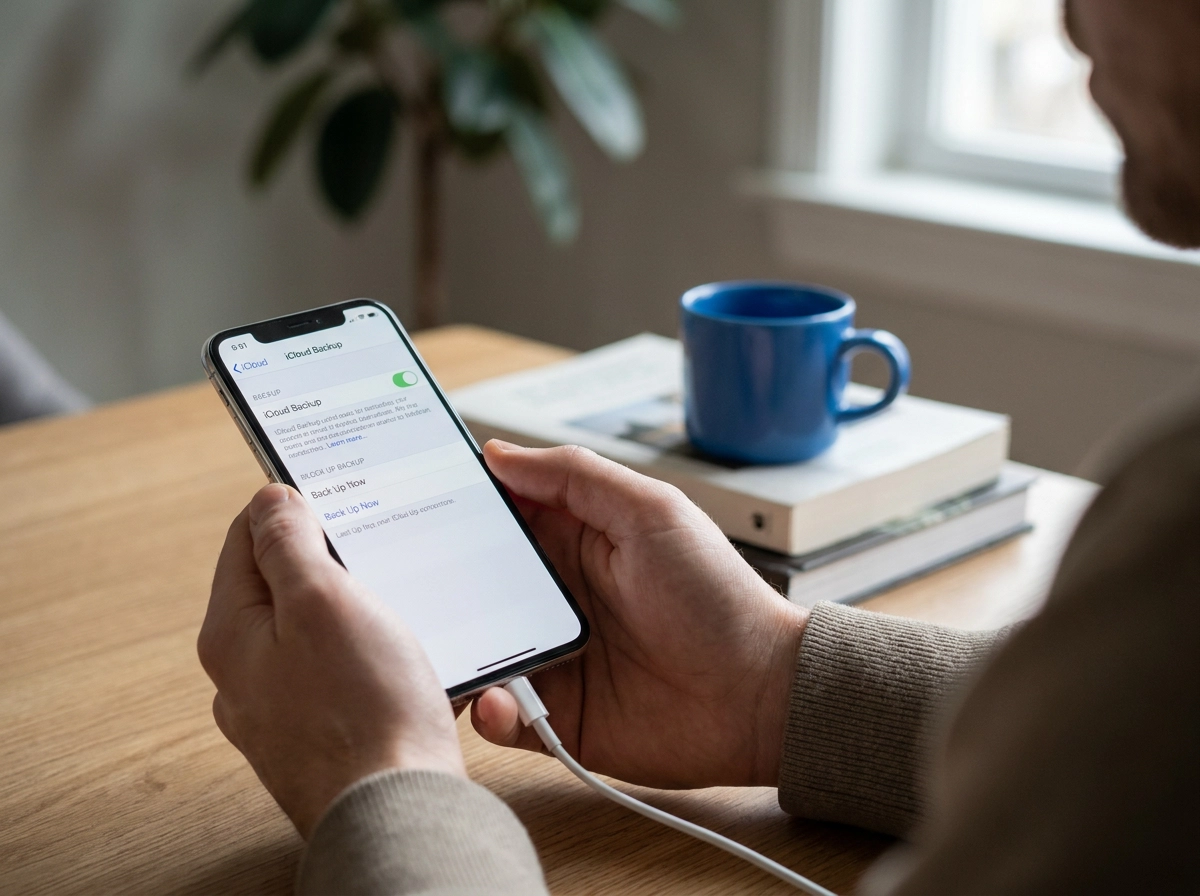
For a fuller copy, connect the iPhone to a Mac with Finder or a Windows PC with the Apple Devices app and choose Back Up Now. Tick the encrypt local backup option if you want saved passwords and health data included; without it, those items are left out (About encrypted backups on your iPhone).
Let the backup finish with the phone awake and plugged in. Interrupting it and then erasing leaves gaps you cannot go back and fill.
Sanity check: open iCloud storage usage and confirm the backup size and date look right, then flick through Photos, Messages, Notes and Contacts.
Finally, write your Apple Account email and password somewhere safe before you sign out. You will need them on your next iPhone, and possibly later if anything has to be re-verified. With that copy secured, you can safely detach the phone from your account.
Step 2: Sign out of your Apple Account and turn off Find My
With your backup confirmed, the next move is the one most sellers get wrong. Open Settings, tap your name at the top, scroll down and tap Sign Out. When iOS offers to keep a copy of your data on the phone, decline. There is no reason to hand a buyer a phone carrying extra account data.
Signing out is what switches off Find My and Activation Lock. The lock follows the account, not the erase, which is why it has to happen now, before the wipe. That distinction trips up thousands of people; a single Apple StackExchange question on erasing before signing out has drawn over 111,000 views.
Enter your Apple Account password when prompted. If the phone rejects it, stop here and recover the password first. Erasing without this step just hides the lock; it does not remove it.
Switching to Android? Deregister iMessage so texts from iPhone friends do not vanish.
Finally, clean up paired devices. Remove your Apple Watch using Apple's sell or give-away preparation steps, and sign out of any iPad, AirPods or accessories still linked to the same account.
Step 3: How to erase all data from your iPhone
Account signed out. Now the wipe.
Open the erase menu. Go to Settings, then General, then Transfer or Reset iPhone, then Erase All Content and Settings. If wording shifts with your software version, Apple's Erase iPhone guide is the reference.
Confirm the warning. The phone asks for your passcode and sometimes your Apple Account password, then warns that all media, data and settings will be removed and cannot be undone. Read it and continue.
Sort the eSIM. If your phone uses one, iOS asks whether to keep or delete the cellular plan. Deleting it is usually safest for a sale; keeping it can create a plan conflict, and reinstalling later means calling your carrier anyway.
Let it run. You will see the Apple logo and a progress bar. A full or older device can take several minutes, so do not touch the screen. Plug it in if the battery is under half.
Same path in 2026. The steps hold on the current iOS cycle, though labels move slightly between versions. If you cannot find the menu, search Settings for the word erase.
If it will not respond. A recovery mode restore is the alternative when the phone is unresponsive and cannot be unlocked. It removes your data, but not Activation Lock, so the sign-out step still has to be dealt with.
Step 4: Remove the SIM card or transfer your eSIM
Erasing doesn't touch the SIM, so there's one job left before the phone leaves your hands.
Pop the tray out with a SIM tool or a straightened paperclip and pocket the plastic SIM. It holds your number, and leaving it in hands a stranger a working line. It can also keep receiving SMS verification codes for accounts you haven't moved across yet. Most guides skip this step entirely, which is how people get caught out.
Using an eSIM? Delete the plan: Settings, then Cellular, then your plan, then Remove Plan. Or move it to your new iPhone during setup with your carrier's transfer flow. Never sell a phone with an active eSIM you still pay for. Data, calls and roaming bill to you, and chasing an unexpected charge later is much harder than removing it now.
Tuck the SIM, tray and any adapters somewhere safe with your new phone until your number works there. A missing tray is a small detail that can slow a quote. Deciding between selling outright and trading in? Which should you pick? walks through it.
What goes wrong if you erase your iPhone first
Pulling the SIM only helps if the phone itself is actually clean. Erase it while it is still signed in to your Apple Account and the account stays attached. On the next activation screen, the phone asks for the previous owner's Apple Account and password. That is Activation Lock doing exactly its job.
The handset is not dead, but it is unusable to anyone but you until that link is removed. This is the single most common reason a well-prepared sale stalls, and it is entirely avoidable.
A locked iPhone cannot be tested, cannot have battery health checked, and cannot be verified as not stolen, so it cannot be quoted as a working phone. You would hit the same wall with any buyer, whether you are moving on an iPhone 14 or something newer.
Some sellers then chase bypass tools and workarounds. Those videos pull big numbers, but a bypass is not a fix for a phone you can legitimately clean up yourself in a few minutes with your password.
If the phone has already changed hands and the buyer cannot activate it, the sale usually unwinds, awkward conversation included. Clearing the lock before pickup avoids all of that.
Already erased it? How to remove Activation Lock properly
If you have already hit erase, don't panic. Sign in at iCloud.com, open Find Devices, pick the erased iPhone from the list and choose Remove This Device. That detaches it from your Apple Account and clears Activation Lock, even while the phone sits on the setup screen.
Apple treats Activation Lock removal as its own documented process, not a one-way door. A locked handset is recoverable when you are the account holder, not automatically a write-off.
Forgotten the password? Start account recovery at iforgot.apple.com straight away. Verification can take days, so kick it off before you agree to a pickup time or a quote.
Bought it secondhand and never got the account details? Your likely route is proof of purchase plus Apple's support process. An activation-locked phone with no clear path back to the original owner is a risk worth walking away from.
Once the device is removed, restart the phone and confirm the setup screen offers a fresh setup rather than asking for someone else's account. That is the moment it is genuinely sellable again.
Pre-quote cleanliness checklist for a Sydney sale
Once that lock is cleared, run this checklist before you ask for a number. Restart the phone and confirm you land on the language and Hello setup screen, not an activation prompt naming someone else's Apple Account. Then sign in at iCloud.com, open Find Devices, and check the handset no longer appears in your list.
Next, note battery health under Settings, then Battery, then Battery Health and Charging. Maximum capacity and any service message are the first figures a buyer asks about. Write down the model, storage size and IMEI from Settings, then General, then About. Be upfront about condition: cracked screen or back glass, camera lens damage, water exposure, previous repairs.
Be honest about replaced parts. A third-party screen or battery shows up in diagnostics, and any mismatch between your description and the device is the fastest way to have a quote reduced on inspection. Whether you are Selling an iPhone in Sydney CBD or Selling an iPhone in Parramatta, that honesty keeps the figure firm.
Then request a quote at sellphones.sydney/inquiry with the model, storage, battery health and condition details. Arrange a pickup time that suits you around work or uni.
The order is the whole trick
Get the order right and everything else falls into place: back up, sign out of your Apple Account, then erase, and pull the SIM or eSIM last. That sequence sends the phone to its next owner clean, unlockable and ready to quote.
Already erased first? Not a disaster. Head to Find Devices at iCloud.com and remove the handset, or start account recovery if the password is the sticking point. Sort that before you promise anyone a pickup.
Then run your check before asking for a figure: fresh setup screen, no account attached, no SIM left behind, battery health and condition written down honestly. A local buyer. A simpler way to sell. One conversation, not two.
Conclusion
Selling your iPhone in Sydney is simpler when you follow the right sequence. Back up first, sign out of your Apple Account and turn off Find My, erase all data, then remove the SIM or eSIM last. If you already erased early, clear Activation Lock before arranging pickup. Before requesting a quote, confirm a fresh setup screen, no account attached, no SIM left behind, and honest battery health and condition details. This order protects your data, prevents lock problems, and keeps your quote firm. Ready to sell? Request a quote at sellphones.sydney/inquiry with your model, storage, battery health, and condition. Then choose a pickup time that fits your day. A clean phone, an honest listing, and one local buyer: that is how you turn your old iPhone into a fast, fair sale.